

Adobe Creative Cloud Installation & Join Team Guide
Please follow the steps below to install and activate your license.
Part 1: Install Adobe Creative Cloud
1. Download Installer
Go to the official Adobe Creative Cloud download page:
Adobe Creative Cloud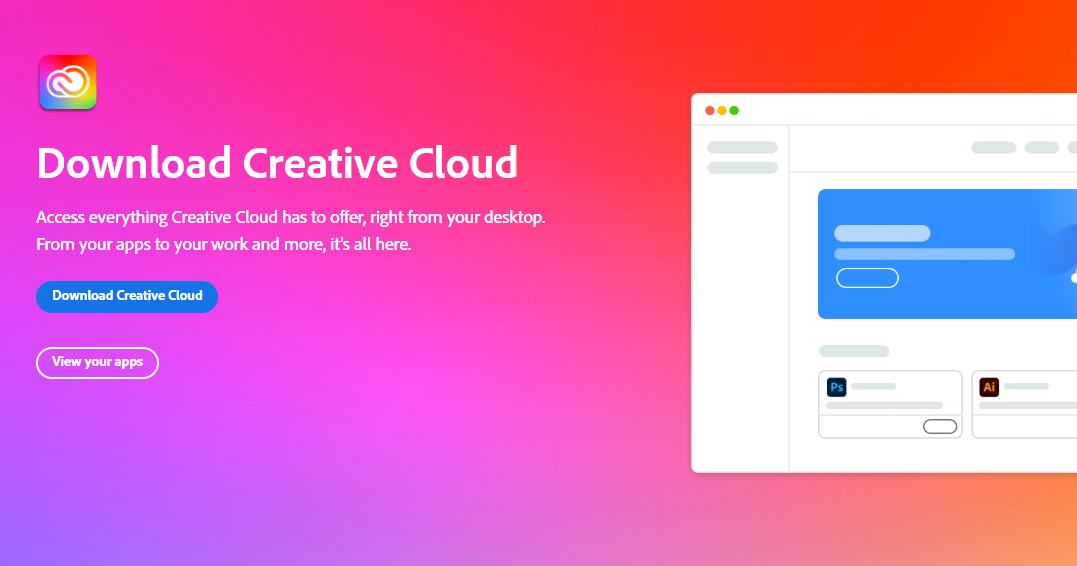
2. Install Creative Cloud
Click Download Creative Cloud, run the installer, and follow the on-screen instructions.
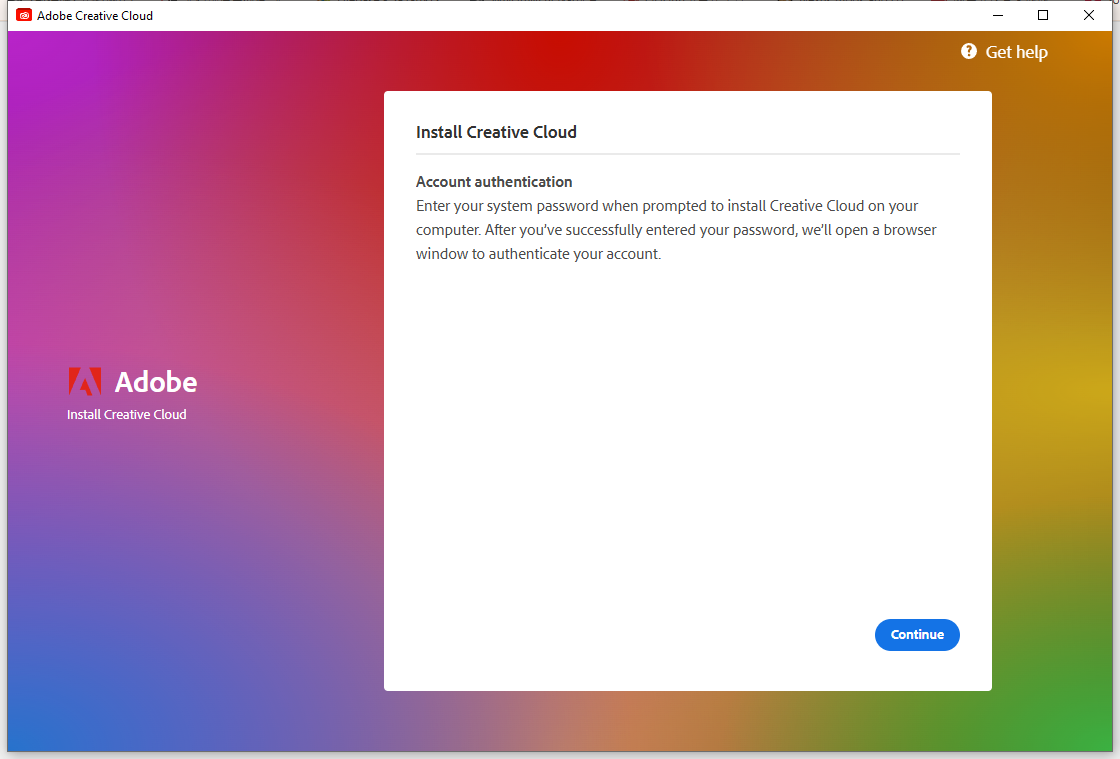
After installation, the Creative Cloud Desktop App will open automatically.
Part 2: Join a Team Account
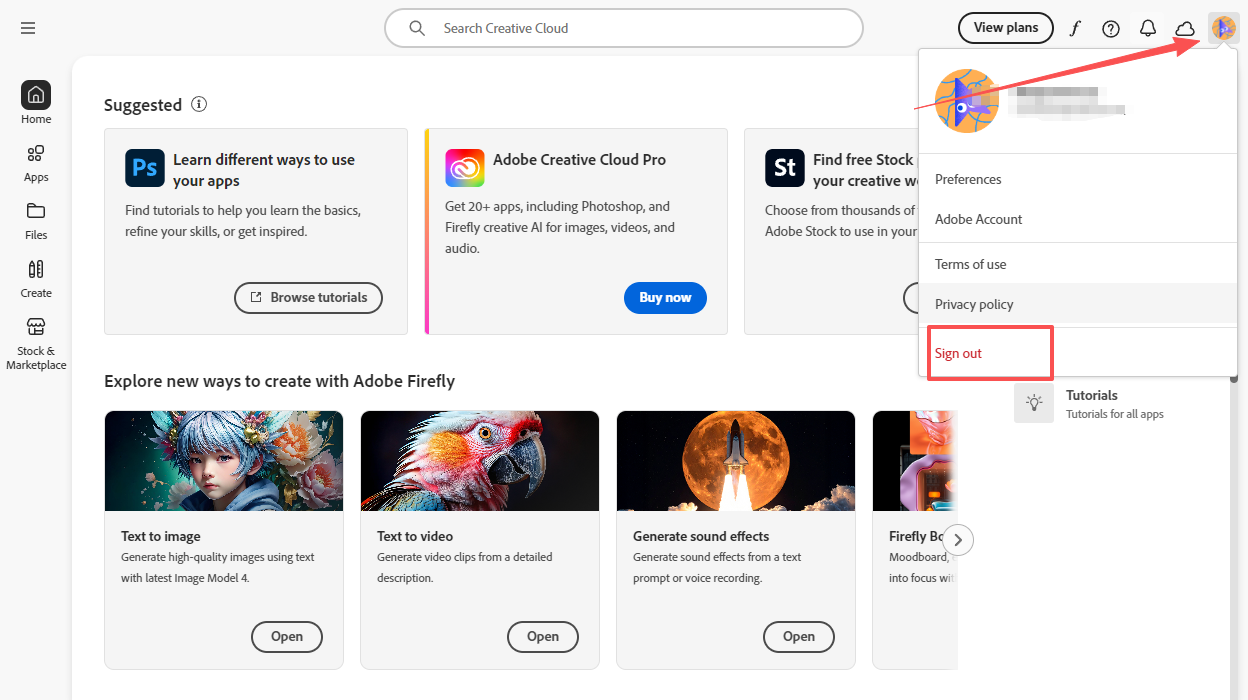
1. Sign Out First
Click your profile avatar (top-right corner) → Sign out.
2. Sign In & Join Team
Sign in again with your email and password, then click Join Team when prompted.
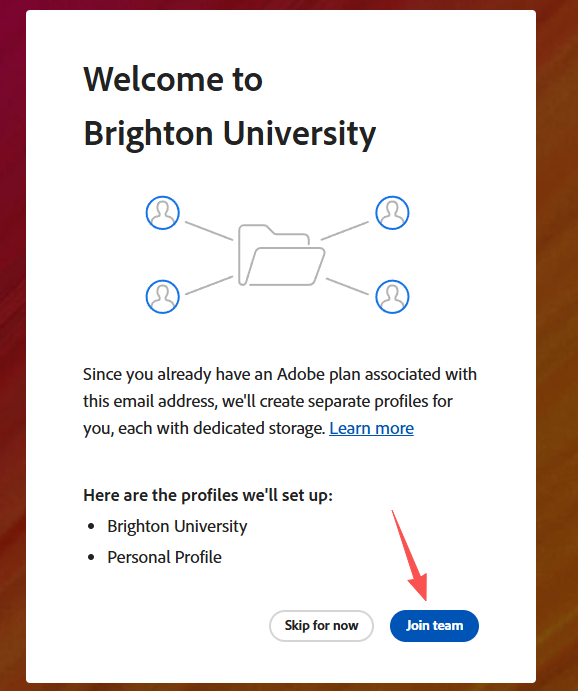
3. Choose Storage Option
When asked about file storage, please select:
“Keep files in Personal Storage”
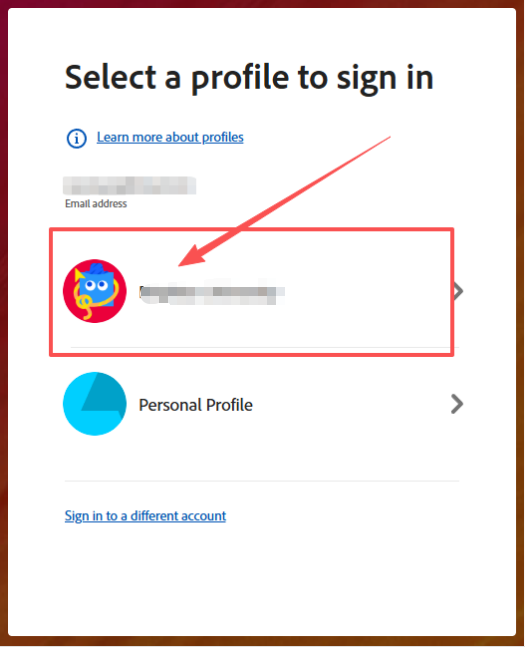
4. Select Team Profile
Choose the Team profile to activate the team license.
You can now see authorized apps in the left-side menu.
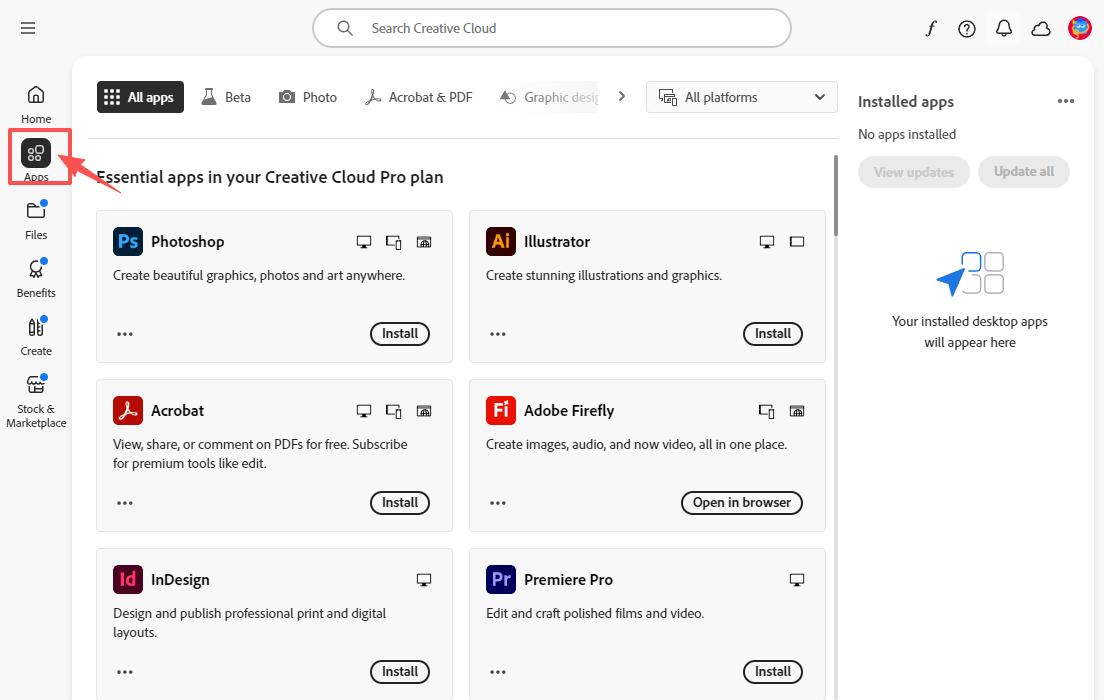
Enjoy Adobe!