
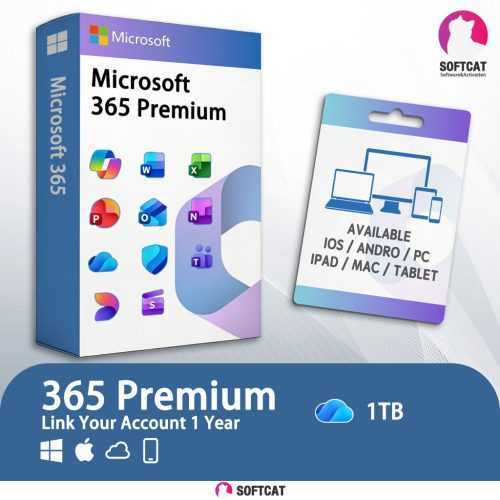

How to Join the Microsoft 365 Premium Subscription via Email Invitation
After receiving our Microsoft 365 invitation, you can easily link your personal Microsoft account to enjoy genuine Office desktop apps and 1TB of OneDrive cloud storage in just a few simple steps. Here is the step-by-step visual guide:
Step 1: Check your invitation email
Open your inbox, and you will find an invitation email from Microsoft Family Safety. Click to open it.

Step 2: Click “Get Started”
In the email body, you will see a prompt inviting you to join the Microsoft 365 Premium Subscription. Please click the blue button “开始使用 >” (Get Started).

Step 3: Sign in to your Microsoft account
You will be redirected to the official Microsoft website. The page will prompt you to join the subscription. Click the green “Sign in” button and enter your own Microsoft account credentials to log in.

Step 4: Confirm joining the subscription
After logging in, the page will display “You’ve been invited to use a Microsoft 365 Premium subscription.” Click the green “Join now” button to accept the invitation.

Step 5: Install Office applications
Once you’ve joined successfully, you will be taken to your Microsoft account dashboard. Here you can see that Microsoft 365 Premium is active. Click the “Install” button to download and install genuine Word, Excel, PowerPoint, and other apps on your computer.

Step 6: Verify your 1TB cloud storage
Scroll down your account overview page, and you will also see that your Microsoft storage has been successfully upgraded to 1 TB. You are now ready to start using it!
